Cleaning up unnecessary data is an essential part of spreadsheet management. Whether you need to remove blank space or eliminate outdated metrics, Google Sheets offers several straightforward ways to remove columns.
Below is a step-by-step guide covering 3 simple methods to delete columns, along with answers to common questions.
What Is the Easiest Way to Delete Columns in Google Sheets?
For most users, Method 1 (The Right-Click Menu) is the easiest and most intuitive way to delete columns. It requires no memorization of keyboard commands, takes just two mouse clicks, and works seamlessly with single, contiguous, or non-contiguous columns.
Method 1: The Right-Click Menu (Easiest & Fastest Method)
This method provides visual feedback and requires minimal effort.
Step 1: Select the Column Header
Hover over the letter at the top of the column you want to delete (e.g., Column B). Click the letter to highlight the entire column.
- To select contiguous columns: Click the first column header, hold Shift, and click the last column header.
- To select non-adjacent columns: Hold Ctrl (Windows) or Cmd (Mac) and click each column letter.
Step 2: Right-Click the Selected Header
Right-click anywhere on the highlighted column letter area to open the context menu.
Step 3: Choose “Delete column”
Select Delete column (or Delete selected columns if deleting more than one). The selected columns and their data will instantly disappear, and adjacent columns will automatically shift to the left.
Method 2: The Top Menu Bar
If you prefer to navigate using standard software menus, the Edit menu provides an easy alternative.
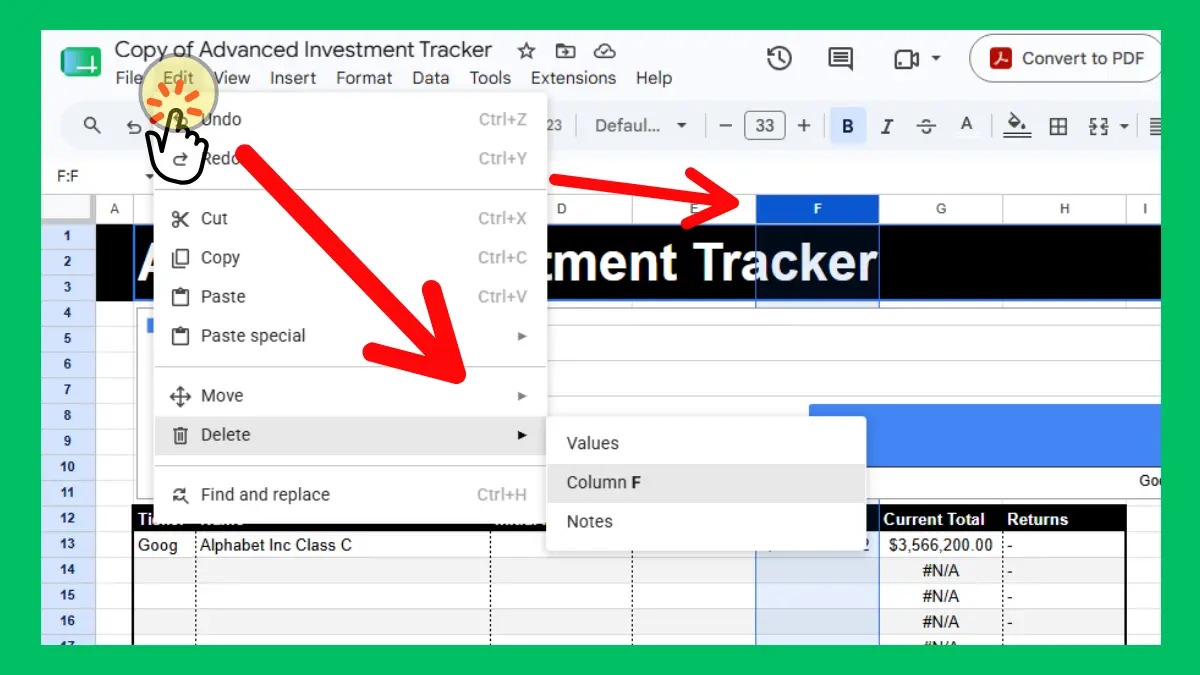
Step 1: Click Any Cell in the Target Column
Click inside any cell within the column you wish to remove.
Step 2: Open the Edit Menu
Navigate to the top menu bar and click Edit.
Step 3: Select “Delete” > “Column”
Hover over Delete in the dropdown menu, then select Column [Letter].
Method 3: Keyboard Shortcuts (For Power Users)
Using keyboard shortcuts allows you to manipulate spreadsheets without touching your mouse.
Step 1: Select the Column via Keyboard
Place your cursor in any cell inside the column you want to remove, then select the full column:
- Windows / ChromeOS: Press Ctrl + Space
- Mac: Press Control + Space (or Cmd + Space)
Step 2: Execute the Delete Command
Once the column is selected, press the following shortcut to delete it:
| Operating System | Keyboard Shortcut |
| Windows / ChromeOS (Chrome) | Alt + E, then press D, then E |
| Windows (With Compatible Shortcuts Enabled) | Ctrl + Alt + – |
| Mac (With Compatible Shortcuts Enabled) | Cmd + Option + – |
Conclusion
Deleting columns in Google Sheets is a simple yet crucial skill for keeping your data clean, organized, and easy to read. Whether you are managing personal budgets or building complex business reports, knowing how to adjust your sheet structure quickly saves time and prevents clutter.
While Google Sheets offers multiple ways to clear out unwanted data—from top menus to advanced keyboard shortcuts—you do not need to memorize every method to work efficiently.
What is the Easiest Method for Beginners?
For beginners, Method 1: The Right-Click Menu is hands-down the easiest way to delete columns.
Why it’s best for beginners:
- Visual & Intuitive: You see exactly what you are selecting before you delete it.
- Minimal Steps: It takes just two simple clicks—one to select the column header letter and one right-click to choose “Delete column.”
- No Memorization: You don’t have to remember complex key combinations or dig through top-level menus.
- Flexible: It works effortlessly whether you need to delete a single column or select multiple columns at once.
Stick with the right-click approach while you get comfortable with Google Sheets. As your workflow speeds up, you can gradually explore keyboard shortcuts!